 .
.Change layer and symbol display properties for spatial map layers. The type of criteria you can change depend on the attributes in the map layer you select. Different visibility cutoffs can be set for symbols than for labels. For details on labeling layers, see Related topics below.
To change map symbols
1. In the Map window, click to select the layer to symbolize in the Layer Legend.
2. From the Layers menu, click Symbolize .
The Symbolize dialog box appears.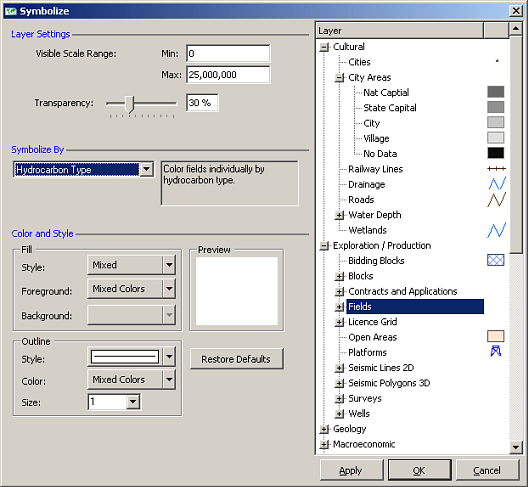
3. In the Layer pane, select the layer for which to configure display properties.
4. Select the display properties based on the following:
Layer Settings - type the range for the map scale at which the layer symbology should appear, and then drag the Transparency slider to set the opacity of the symbology. The opacity of the symbology in the Layer pane changes as you drag the Transparency slider.
Symbolize By - the attributes by which to render symbology depends on the layer selected.
Color and Style - the formatting options vary depending on whether the symbology you're changing is a point, line, or polygon.
5. Either click Apply to save the changes you made above and then continue to change the symbology for other layers, or simply click OK to save the changes you made and automatically close the Symbolize dialog box.
Using the Layer Legend, select a layer and then click Label  to display the Label dialog box and change attribute label details.
The spatial layer configuration you create is saved along with the map.
| Adding company layers | Editing layer attributes |
| Changing layer draw order | Grouping the Layer Legend |