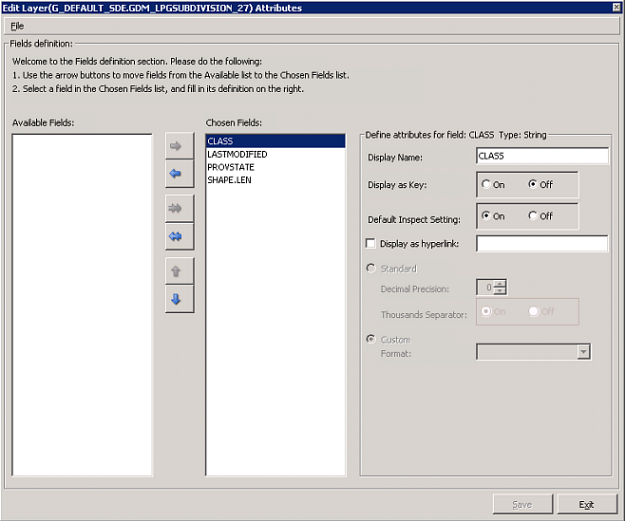
Set the display properties for information associated with objects on proprietary layers including whether particular attributes appear and how they appear.
For example, select whether attribute values appear by default in the Inspect bar and their decimal precision.
To edit layer attributes
1. Right-click the shapefile layer name in the Layer Legend to the left of the map, and from the shortcut menu, click Edit Layer Attributes.
The Edit Layer Attributes
dialog box appears.
2. Highlight the
attribute to add in the Available Fields pane and click  to move it to the Chosen Fields pane. Click
  and
and  to change the order in which the attributes
are rendered on the map where moving an attribute up renders it first
and moving it down renders it last.
to change the order in which the attributes
are rendered on the map where moving an attribute up renders it first
and moving it down renders it last.
3. With the layer to modify selected in the Chosen Fields pane, in the Display Name box to the right, type a name that will appear in the map Inspect bar and in output windows.
4. In the Display as Key pane, select On if the attribute has a unique value that you want to appear in Data Navigator.
5. For Default Inspect Setting, select On to display that attribute in the map Inspect bar. This can be customized for individual maps using Map > Customize Inspect.
For numeric attributes, select the Decimal Precision with which to display values.
6. After configuring the desired attributes, click Exit to save them and close the dialog box.
| Adding company layers | Changing spatial layer display |
| Changing the draw order of layers | Grouping the Layer Legend |