History Matching (Multilayer PSS)
To history match using the multilayer pseduo-steady state (PSS) model:
1. Launch the multilayer well for analysis. It is important to launch the well itself, not one of the layers. See Launching an Entity for Analysis for details.
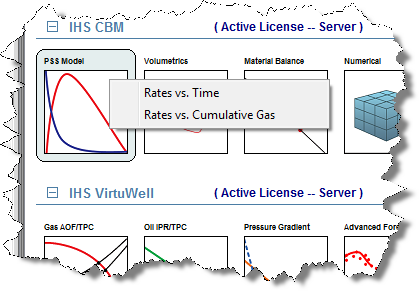
2. Click the PSS Model thumbnail; then select the type of worksheet you want to create. We recommend that you begin with a Rates vs Time worksheet.
3. Select Pseudo Steady State from the + menu in the Analysis Manager.
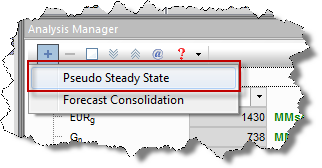
A multilayer PSS model is created.
4. Expand the History Match Properties section in the Analysis Parameters pane.
5. Set the calculation mode for the history match by selecting one of the options (described below) from the Calculate drop-down list:
- qg, qw using pwf : Uses the flowing pressure to calculate the gas and water rates.
- pwf, qw using qg: Uses the gas rate to calculate the flowing pressure and water rate.
- pwf, qg using qw: Uses the water rate to calculate the flowing pressure and gas rate.
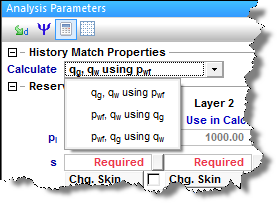
Your model has a set of parameters for each layer. Some of the parameters (pI, h, φ, and Swi) have default values from the Properties Editor for corresponding layers; you can edit these values if you want.
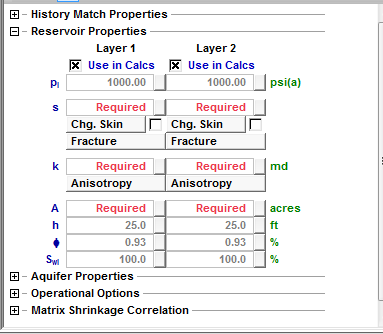
6. Enter the remaining required parameters for each layer.
Once all required parameters are populated, calculations will run. If you do not want calculations to run automatically, deselect the AutoCalc icon ( ) on Analysis Parameters toolbar; calculations will only run when you click the Synthesize icon (
 ) .
) .
7. To improve the history match, you can use available advanced settings:
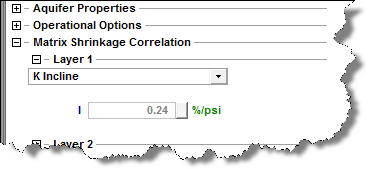
8. By default, matrix shrinkage correlations are copied from the Properties Editor of corresponding layers. To edit them, expand the Matrix Shrinkage Correlation section.