 To import custom formation tops
You can import tops from .xls, .csv, or .txt files. Tops must be picked using measured depth units instead of subsea or True Vertical Depth because wells always include measured depths, but they don't necessarily include the deviation survey required to import True Vertical Depths.
If you launch AccuX from AccuMap or run AccuX in DB mode, unless you inadvertently delete AccuMap tops while organizing them in AccuX, you don’t need to import tops from AccuMap because they appear automatically. AccuMap user tops have a higher priority than AccuMap system tops with the same name and appear by default.
Consider deleting all or some tops in AccuX before importing new custom tops.
To import custom formation tops
1. From the Stratigraphy menu, select Import tops using spreadsheet filter. If using AccuX DB mode, this option is only available while in the Map view.
The Formation Tops Importing Filter
dialog box appears.
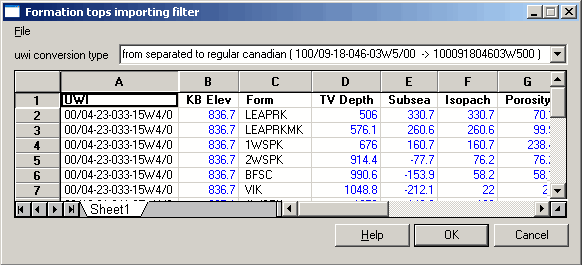
2. From the Formation Tops Importing Filter dialog box File menu, select the import file format (.xls, .csv, or .txt).
The Open dialog box appears.
3. Browse to the local file then click Open.
The Formation Tops Importing Filter dialog box is populated with the selected file.
4. From the uwi conversion type drop-down box, select the conversion format that will convert imported wells to 16-character format based on the following:
 From reordered to regular If data in the
UWI column appears in a
format such as 00/14-06-097-03W6/2.
From reordered to regular If data in the
UWI column appears in a
format such as 00/14-06-097-03W6/2.
From separated to regular If data in the
UWI column appears in a
format such as 100/09-18-046-03W5/00.
No conversion, use as is If data in the UWI
column appears in a format such as 100091804603W500.
5. Select the headers for all non-stratigraphic columns (elevation, TD, X, Y, etc.), press Delete on the keyboard, and then click OK.
 Note: Columns without
headers aren't imported.
Note: Columns without
headers aren't imported.
6. From the Stratigraphy menu, select Stratigraphy Manager and ensure the imported tops appear in the stratigraphic object area.
Note: If working in DB Mode, before you can see
the imported tops, you must close and then launch the cross section again.
The tops are automatically placed in the well with the matching UWI if that well already appears in the cross section.
