 ) and then double-click that shortcut to launch EDIN Desktop in Admin mode. When in Admin mode, changes you apply to layers using the map legend (layer order, symbolization, added proprietary layers) appear for all EDIN Desktop users.
Add the switch -admin to an EDIN Desktop shortcut () and then double-click that shortcut to launch EDIN Desktop in Admin mode. When in Admin mode, changes you apply to layers using the map legend (layer order, symbolization, added proprietary layers) appear for all EDIN Desktop users.
For EDIN Network Application installations, complete the below steps on only the computer where Network Application is installed, not on every individual machine where Network Client is installed.
To launch EDIN Desktop in Admin mode
1. Right-click the existing EDIN Desktop shortcut and from the shortcut menu, click Copy.
2. Right-click the Windows desktop and from the shortcut menu, click Paste.
3. Right-click the desktop shortcut and from the shortcut menu, click Properties.
The Shortcut
Properties dialog box appears.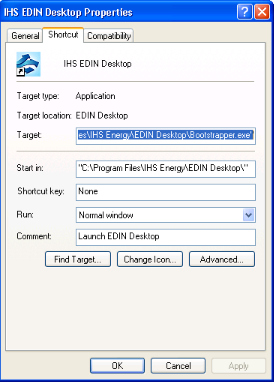
4. Place your cursor at the end of the Target line after the current text (and to the right of the double-quotation mark (") if one appears), press SPACEBAR, type -admin, and then click OK.
5. Double-click the shortcut you modified above to launch EDIN Desktop in Admin mode.
When EDIN Desktop is running in Admin mode, the term "Admin Mode" appears in the title bar of the main toolbar.
| Adding company layers | Editing layer attributes |
| Changing the draw order of layers | Changing spatial layer display |
| Grouping the Layer Legend |