 To select map layers using AccuX
Vision
To select map layers using AccuX
VisionYou can select the type of map layer to display based on numerous data types and how to display the Z values of the desired map layer. You can create isopach maps, residual maps, overlay maps, formation penetration maps, and more.
If you've created a polygon for independent contouring, the polygon is associated with the map layer on which it was created. If you change map layers and want to use an existing polygon, you must first attach it to the new layer (Polygon > Attach User Draw Object).
To select map layers using AccuX
Vision
1. In the
left toolbar, click AccuX Vision
( ).
).
The Setup AccuX Vision
dialog box appears.
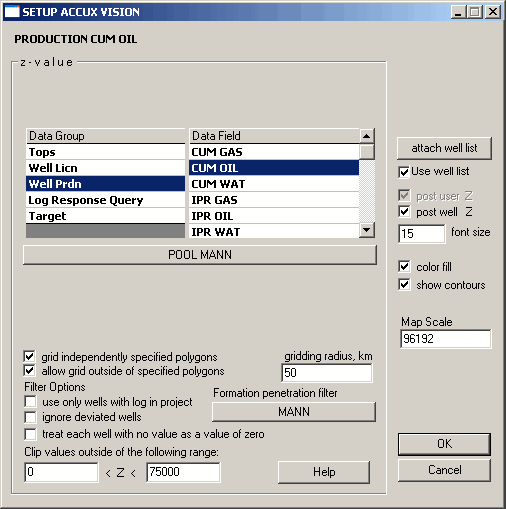
2. Select the data group with which you want to work and in the adjacent list, select the specific data field. For example, select Well Prdn as your data group and Cum Oil as your data field.
3. Click the lookup button below the data group area to select a specific item within a data field. For example, following from the example above select Mannville as your producing formation.
4. Select any additional data treatment options and then click OK. For example, you may want to limit the influence of wells on your map to only those that penetrate a specific formation by clicking the Formation penetration filter button or type values in the Clip values outside of the following range boxes to define the range within which Z values influence your map.

|
|
