User Interface
 Click to see Subtopics / Related Topics:
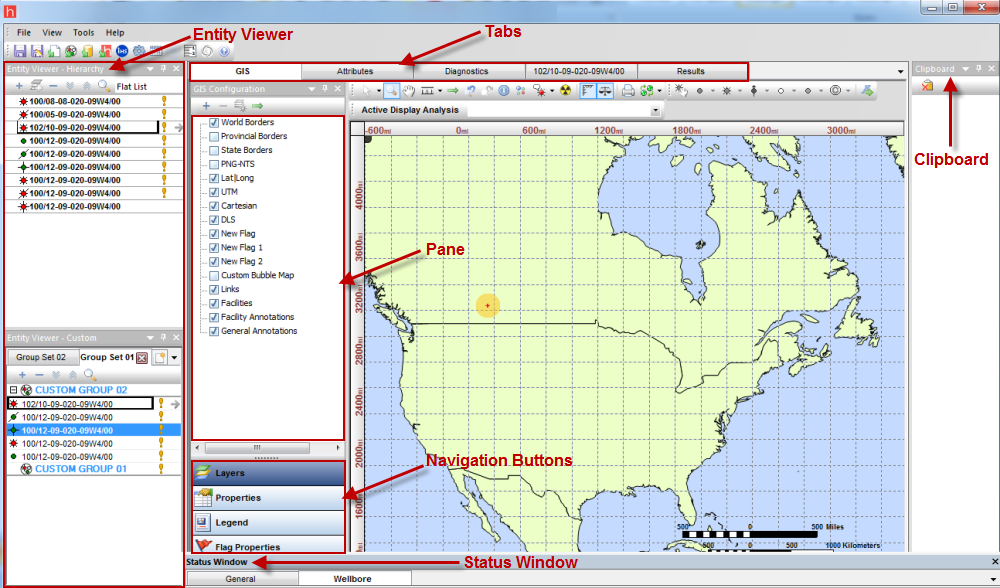
Below is the Harmony user interface with an open project, showing all of the important tabs, panes, windows, and buttons:
Tabs
The following tabs are displayed across the top:
Note: The Editors tab is displayed once you launch an entity for analysis.
Panes
Smaller windows within the program (such as the Status Window or Analysis Manager) are referred to as 'panes.' Some of these panes are docking windows with special functionality.
Navigation Buttons
Some panes have navigation buttons (like MS Outlook) at the bottom — for example:
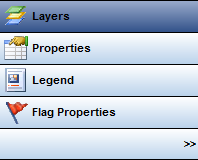
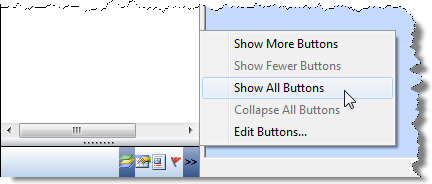
To show the buttons when they are minimized (collapsed), click the >> button, then select Show More Buttons or Show All Buttons.
To hide the buttons when they are maximized (expanded), click the >> button, then select Show Fewer Buttons or Collapse All Buttons.
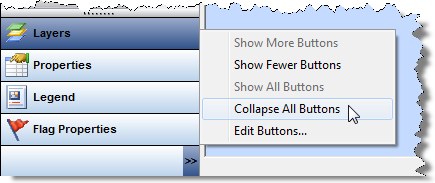
Selecting Edit Buttons... opens the Shortcut Pane Options dialog box.
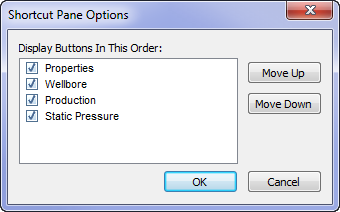
Select / deselect the buttons you want to show / hide, or move the buttons up or down to create a custom order.